Manage the accounts of your team
This guide shows how to get the first administrator account of Colander, create the accounts of your colleagues, and how users secure their own account.
Get the first administrator account
How you get the first administrator account depends on how Colander was deployed:
-
Ansible: the deployment creates it for you. The username and the password are
colander_admin_userandcolander_admin_passwordin your configuration vault. The same applies to Threatr, withthreatr_admin_userandthreatr_admin_password. -
Docker Compose: create it on the machine running Colander, from the
dockerfolder, with the same-farguments as the ones you started the stack with:Create the administrator accounts of Colander and Threatrdocker compose -f compose-dev.yml exec colander-front /entrypoint python manage.py createsuperuserdocker compose -f compose-dev.yml exec threatr-front /entrypoint python manage.py createsuperuser
Store these credentials securely and do not share them. This first account is needed to create all the others.
Open the administration panel
| Deployment | Colander administration panel | Threatr administration panel |
|---|---|---|
| Ansible | ${colander_base_url}/${colander_django_admin_url} | ${threatr_base_url}/${threatr_django_admin_url} |
| Docker Compose | http://localhost:5000/admin/ | http://localhost:5001/admin/ |
With Ansible, the panels are served at random paths: replace the variables with the values of your configuration vault.
Create an account for a user
By now, the only way for a new user to get an account is requesting its creation to an administrator. The administrator must use the administration panel to add a new user.

Then, the administrator has to specify the username and password that will then be shared with the user.
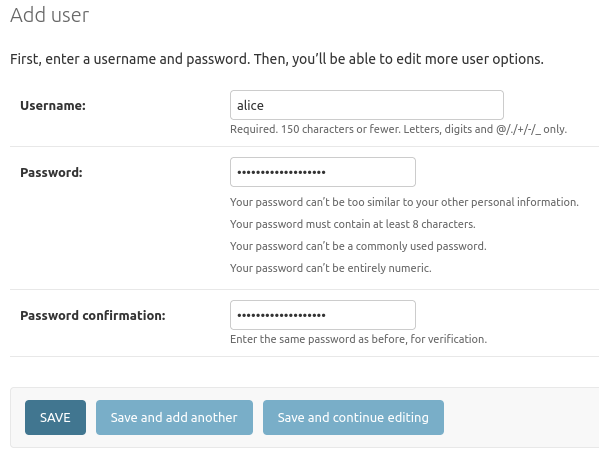
To grant the administrative rights to a specific user, an administrator has to select Active, Staff status and Superuser status options.
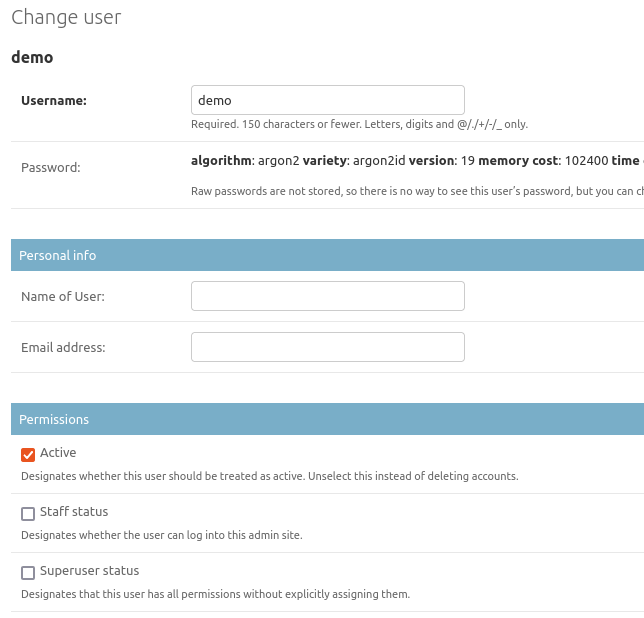
Instead of deleting an account, administrators can deactivate a given account.
Raw passwords are not stored, so there is no way to see the user’s password.
Verify an email address
At their first login, a user has to set a primary email address by opening their profile (click on the username at the top right of Colander then Manage in the email address section) and has to go through the verification process.
Having a verified primary email address linked is necessary to reset the password of the account.
Change a password
After having linked their email address, the user can logout, go back to the login page and click on Forgot your password?. An email detailing the procedure will be sent to the primary email address linked to the account.
Enable two-factor authentication
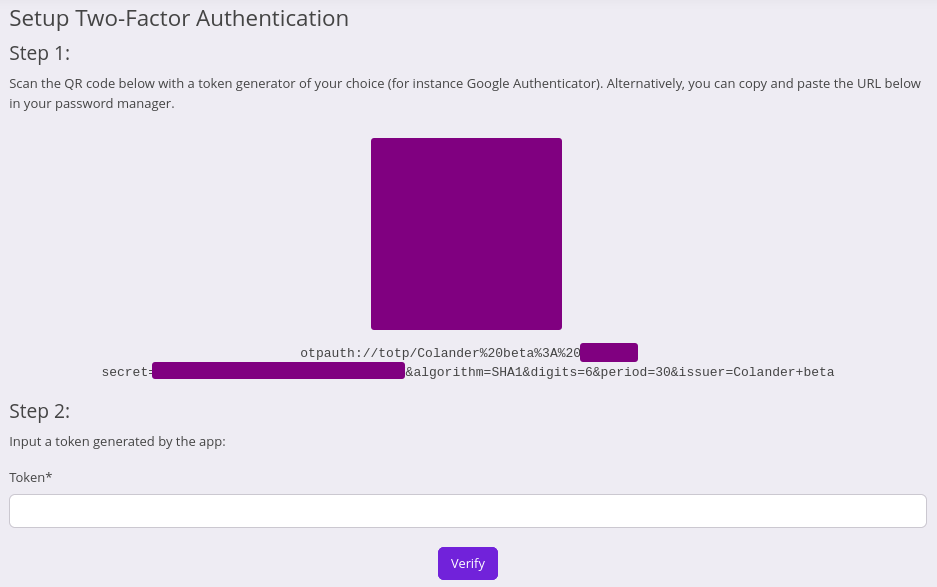
Users can set up 2-factor authentication by following the procedure in their profile, section 2FA. By now, Colander only supports TOTP.