Enrich a case with threat intelligence
This guide shows how to use the Investigate workspace to look up an observable in external services, such as VirusTotal, MISP or OTX Alien Vault, and import the results into your case. Colander queries these services through Threatr, which must be connected to Colander and to the vendors. The types of observables Threatr can look up are listed in the Threatr reference.
Search for an observable
Open the Investigate workspace. Select the type of the observable and type its value. In the example below, we want to retrieve information about the domain name sharefilesonline.live.
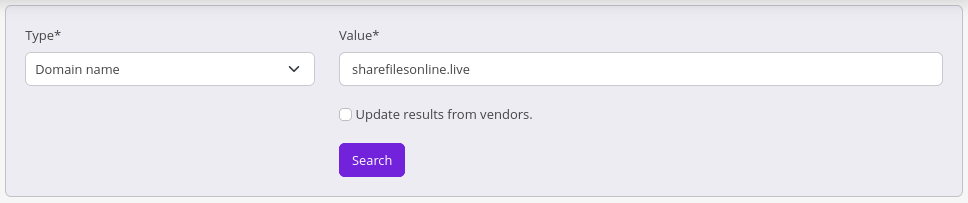
Threatr returns the results it already stored for this observable. To query the vendors again, check Update results from vendors.
Read the results
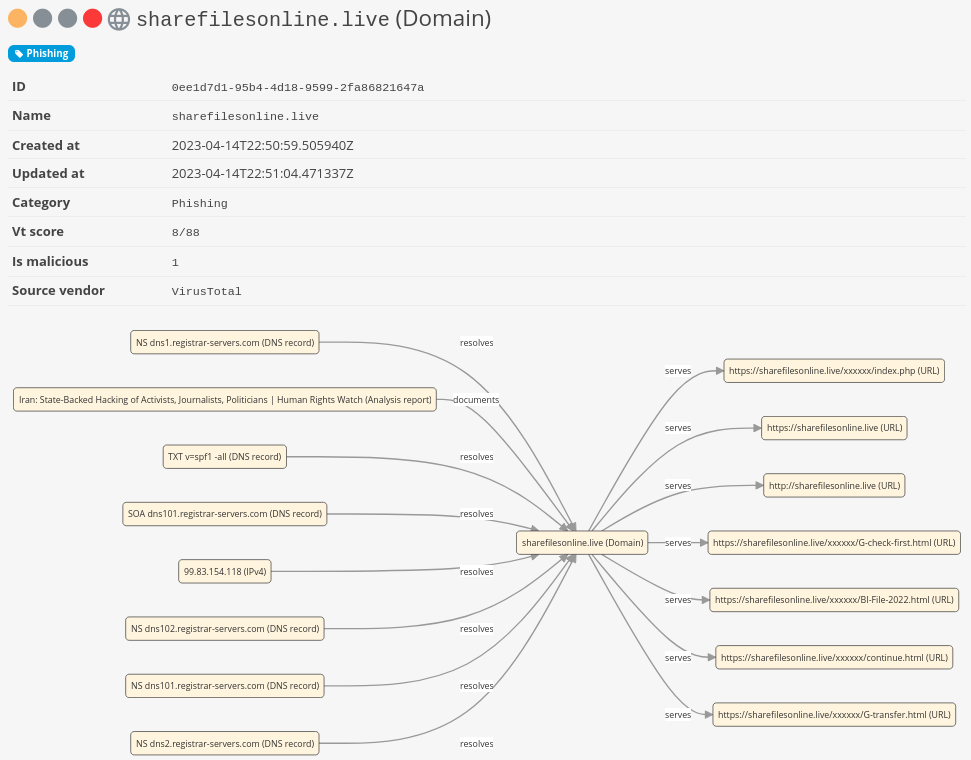
Once the results are available, Colander shows details retrieved about the requested observable and a summary of the results in the form of a knowledge graph.
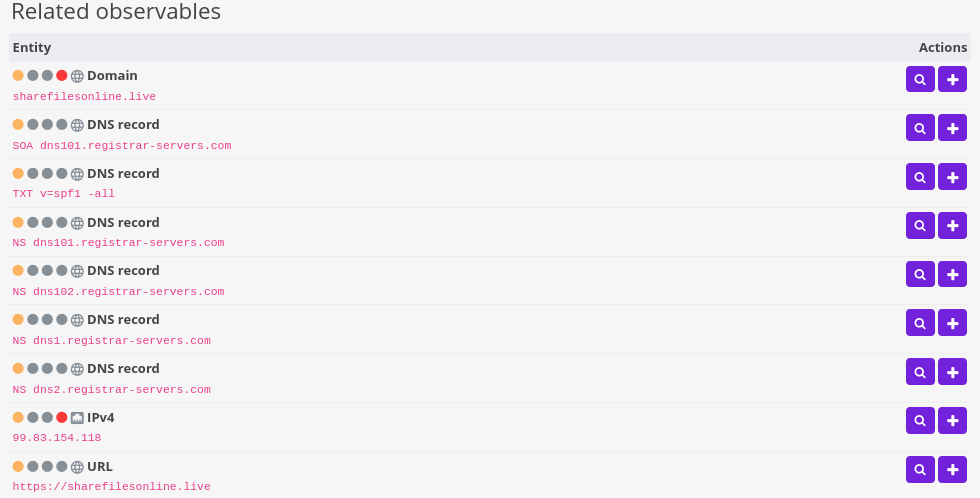
The next section contains the list of all the observables that are related to the requested one. From this list, you can either pivot on a specific observable or add it to your current case.
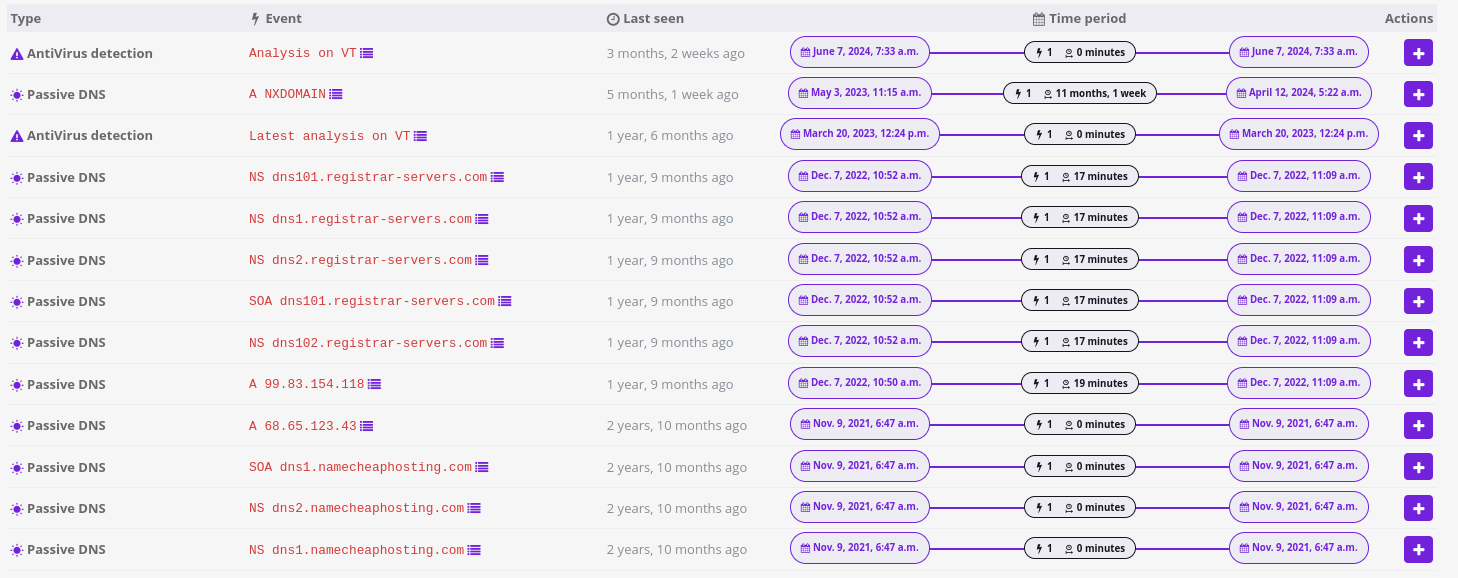
The last section contains the list of the events involving the requested observables. Those events can be detections, passive DNS resolutions, etc. From this list, you can import events directly into your current case.
Enrich an observable of your case
Instead of using the search form, you can jump into the Investigate workspace directly from an existing observable by clicking on the button Investigate accessible in the details of the observable.
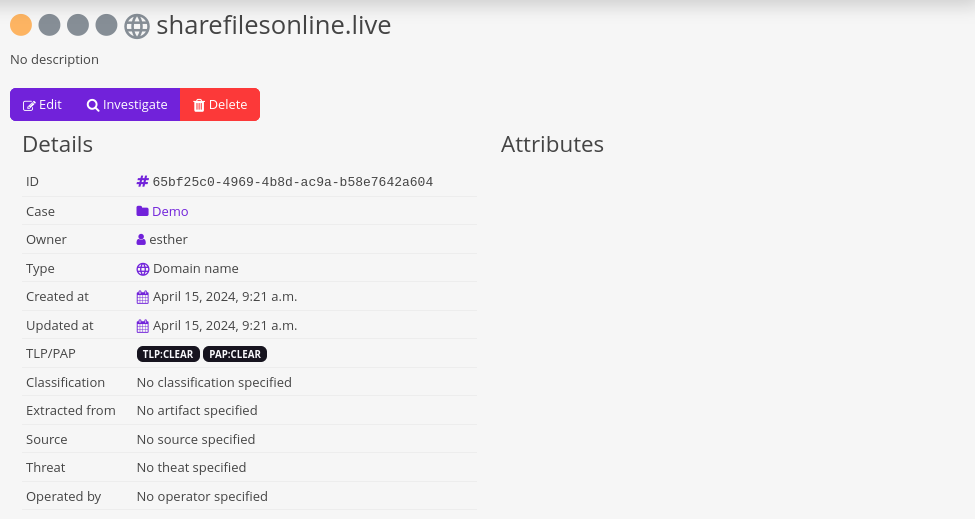
Then, in the list of observable, the first one will always corresponds to the requested one. If you add it to your case, Colander will automatically merge the information already specified with the ones coming from the external services.
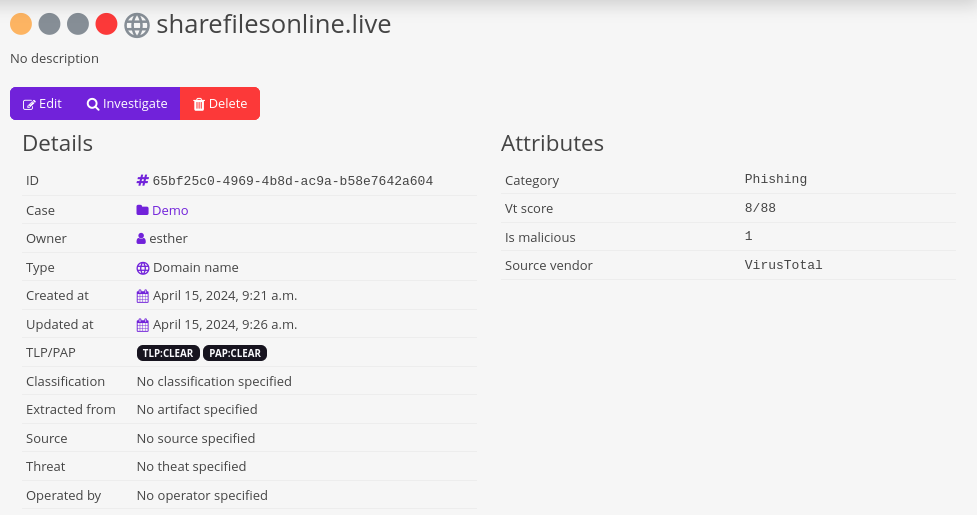
Import observables
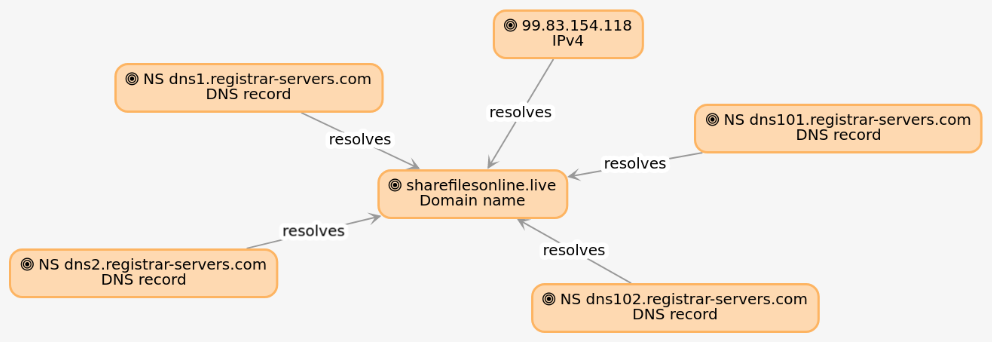
When you import observables from the Investigate workspace to your current case, Colander will automatically merge the knowledge graph representing the results from the external services with your existing knowledge graph. As an example, let's imagine that your current case only contains one observable sharefilesonline.live, your knowledge graph contains only one node.
From the Investigate workspace, you add some observables, your knowledge graph now contains all the imported observables.
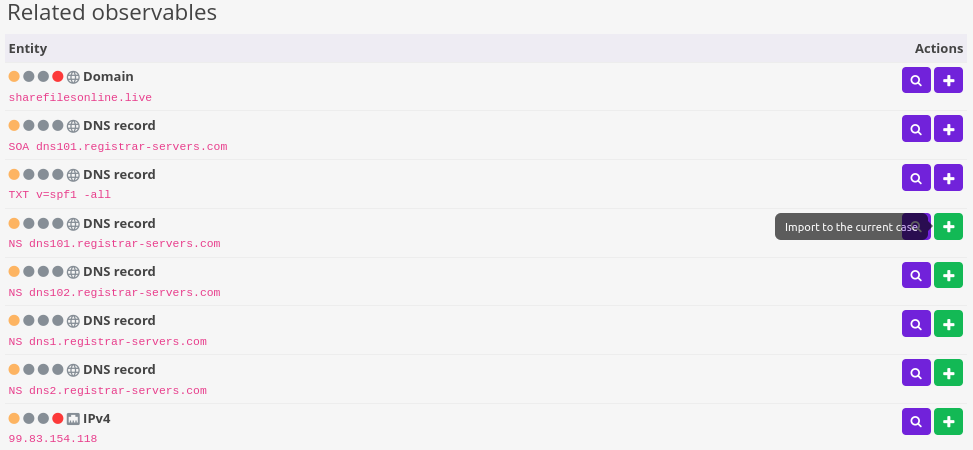
Your knowledge graph now contains all the imported observables.
Import events
From the Investigate workspace, you can also import events into your case.
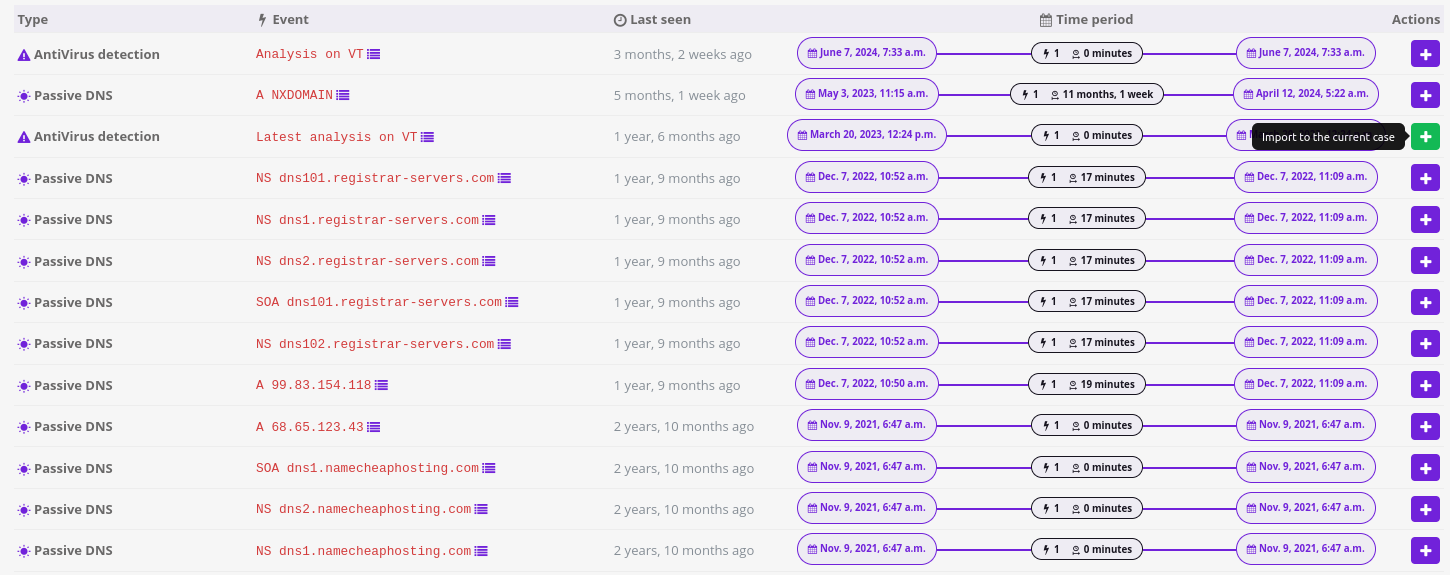
Your knowledge graph now contains the events you just imported.
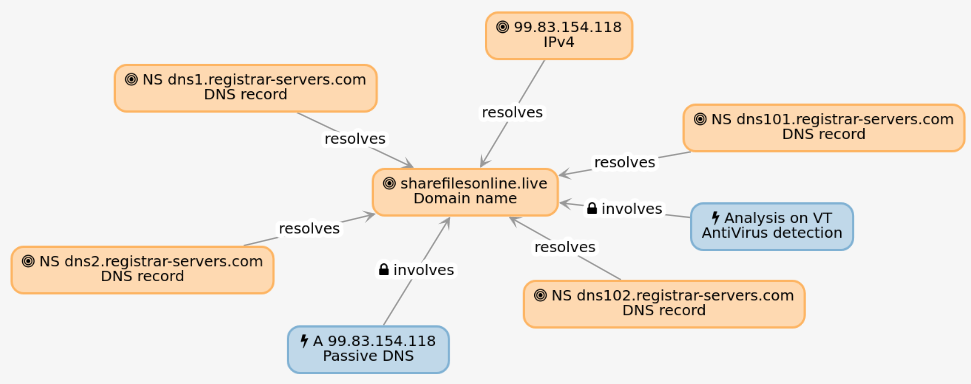
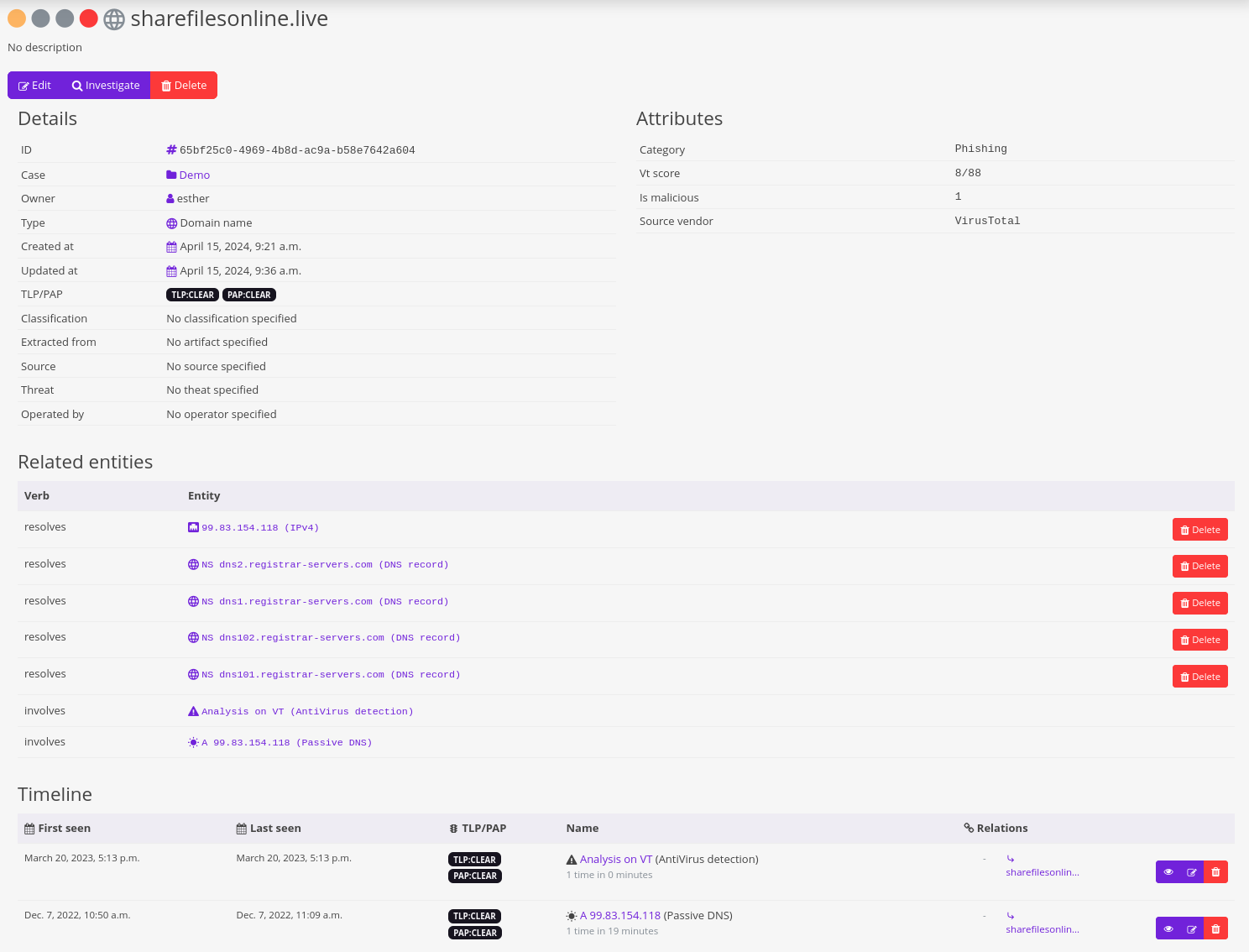
Now, in the details of the sharefilesonline.live observable, you will find the list of the related entities and the timeline containing the information you imported.