Capture web content
This guide shows how to capture web pages with the Colander Companion browser extension, and how to turn the captures stored in your drop zone into artifacts of a case.
Colander Companion captures a static rendering of a web page and sends it to your drop zone. The drop zone is a personal, temporary storage, where potential evidence waits until you sort it: each Colander user has their own. Other ways to add artifacts are described in Add artifacts to a case.
Colander Companion is compatible with Mozilla Firefox.
Install Colander Companion
Setup Colander Companion for desktop
Learn how to install and configure Colander Companion for desktop
Setup Colander Companion for mobile or tablet
Learn how to install and configure Colander Companion for mobile or tablet
Capture a web page
- Web content acquisition can be initiated at any point during a browsing session by clicking the Colander Companion extension icon.
- A pre-capture prompt allows the user to designate a case for association, but this step is not mandatory.
- To finalize the capture, press the
Capturebutton.
Depending on the richness of the web content, wait for the Colander Companion popup Captured !. You can then continue browsing: the capture is in your drop zone.
Open your drop zone
When connected to your Colander account:
- Click on
Colanderheader to go back to home page - Select
Dropsmenu entry
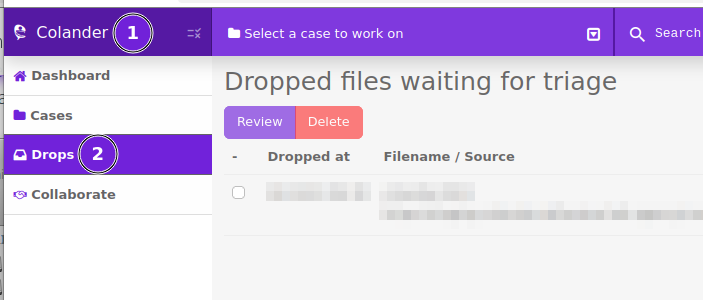
Delete or review drops
In the drop zone, you process drops in batches: convert them to artifacts, or delete them.
Deleting drops is destructive and cannot be undone.
If the user chooses not to keep certain uploads, it proceeds as follow:
- Select one or more dropped files to delete
- Click
Deleteaction
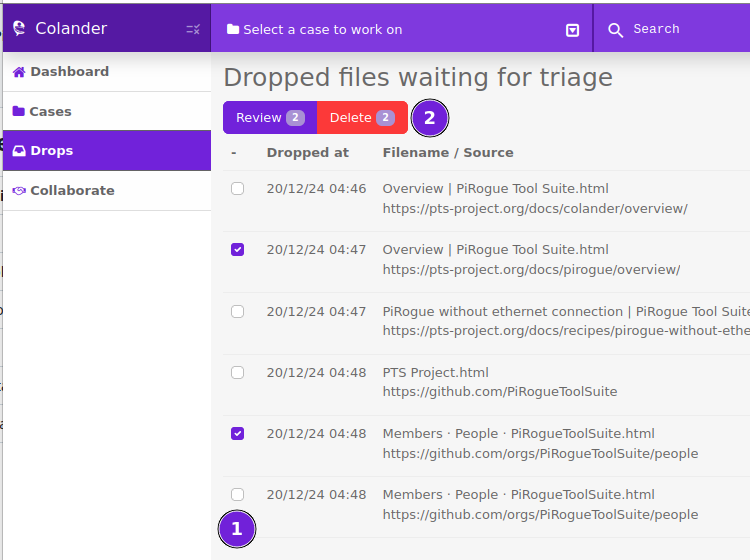
If the user wants to keep files and associate them with a case, they're converted to Artifacts as follows:
- Select one or more dropped files to review
- Click
Reviewaction
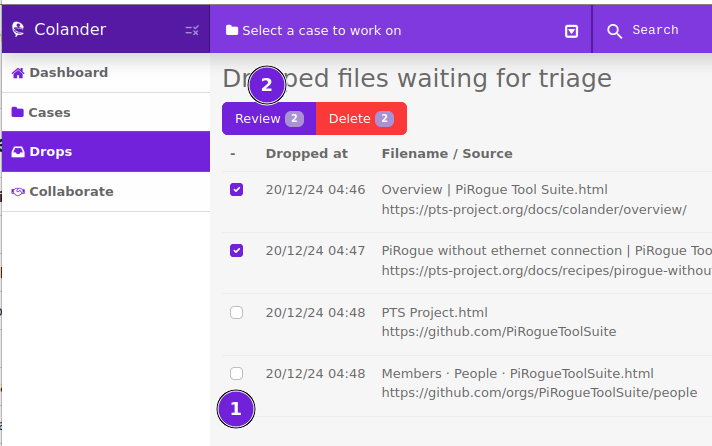
Convert drops into artifacts
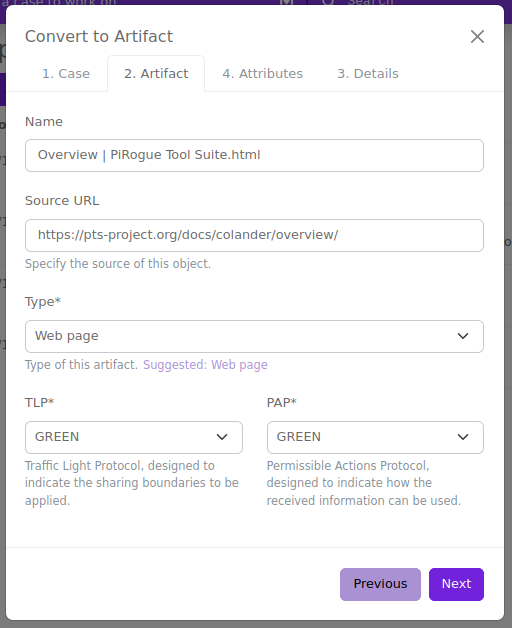
The review process is a wizard devided into few steps. Each step asks the user various Artifact properties to be applied to all selected reviewed drops. The user can cancel the reviewing process at any point in the wizard.
The case association is an important step, as it can't be changed later. Take care if you review drops in batch.
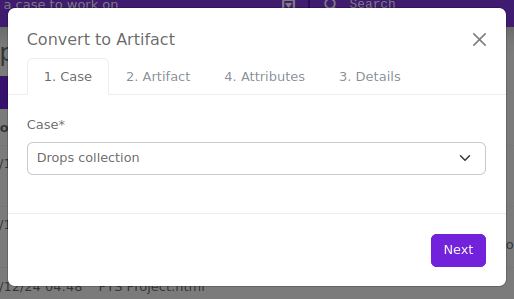
In single drop review, the user can modify the Name of the destination Artifact.
In batch mode, the Name field keeps its original value, but the user can change it later in details of the artifact.
All other properties are applied to the whole batch.
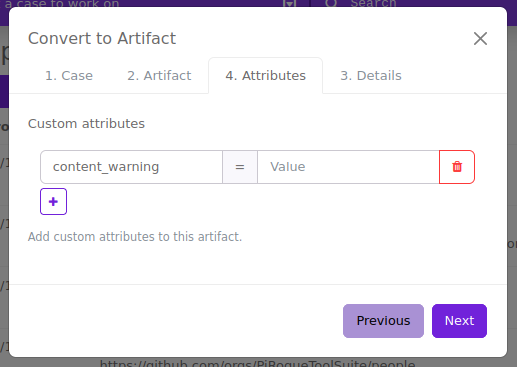
The user can add attributes to Artifact at this step. All attribute values that are empty will be omitted.
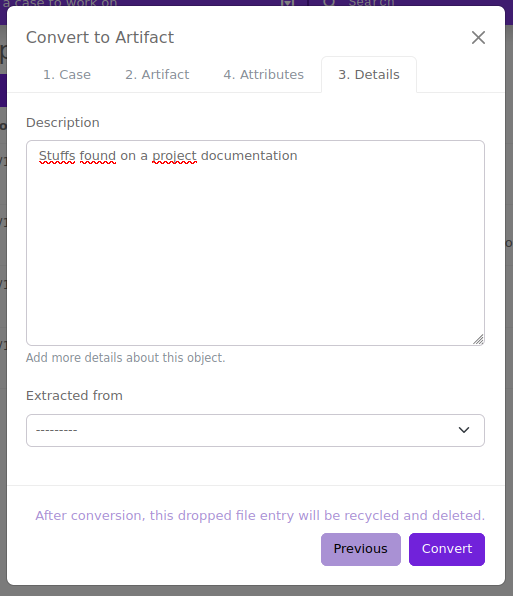
Last, the user can provide a more detailed description.
Clicking Convert will validate and launch the conversion to Artifact.
After the conversion, Artifacts can be found in each destination case under details of the artifact.