Add artifacts to a case
This guide shows the ways to add files, such as a backup, a capture or a sample, to a case as artifacts. Once uploaded, Colander hashes, signs and analyzes every artifact, see Artifacts and their analysis.
Upload a file from your browser
Open the Collect workspace and select the Artifact entry.
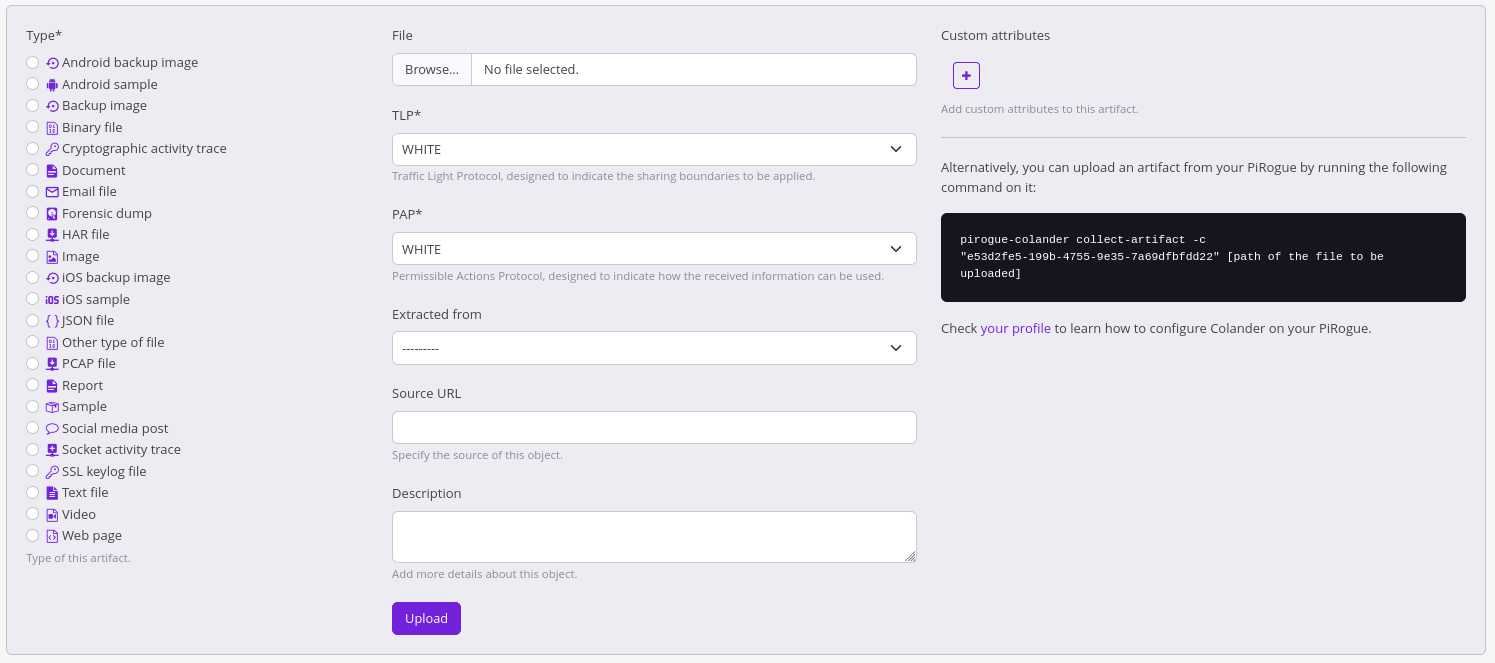
Fill in the form and choose the file. The file is uploaded by chunks, so large files can be uploaded even over an unstable or slow Internet connection.
Upload a file from a PiRogue
The Colander client for PiRogue is installed by default on the PiRogue. The exact command to run on your PiRogue is listed at the bottom of the artifact creation form. It looks like:
pirogue-colander collect-artifact -c "[case ID]" [path of the file to be uploaded]
If the client is not configured yet, see Import a PiRogue experiment.
Upload a file with the REST API
See the Python client.
Capture a web page
To capture a web page as you browse, use the Colander Companion browser extension, see Capture web content.